7 Tips To Save Battery Life In Your Android Phone

7 Tips To Save Battery Life In Your Android Phone

Admin 2016-02-23T17:28:00+05:30 0
 If you use your smart phone the best way, that defintely can add a lot to saving its battery life. There are several tips using which you can prolong the beautiful life that your phone has with its battery. Vheck out the following tips to save the battery of your Android Smartphone.


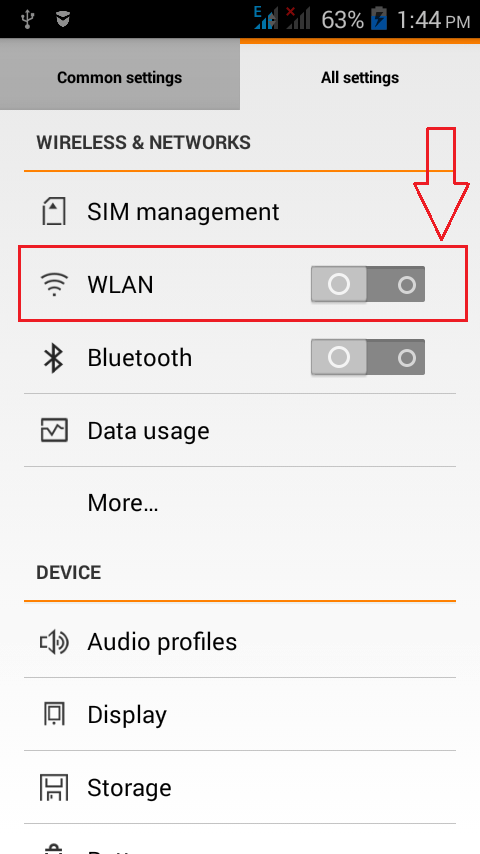
Tip 1 : Turn Off WLAN

You are definitely not using the data all the time. So why don’t you turn the WLAN feature off? It can save up a lot of battery power, whether you believe it or not. You just need to navigate to Wireless and Networks section under All Settings to turn off the WLAN feature.
1wlanOff

Tip 2 : Turn Off Bluetooth

It’s quite often that you forget to turn off the Bluetoothfeature right after a file transfer. But have you got any idea how much of your battery life is being wasted just because of this? Do not forget to turn off the Bluetoothfeature once you are done with transfering files. You can always turn it on when you need it the next time.
2bluetooth

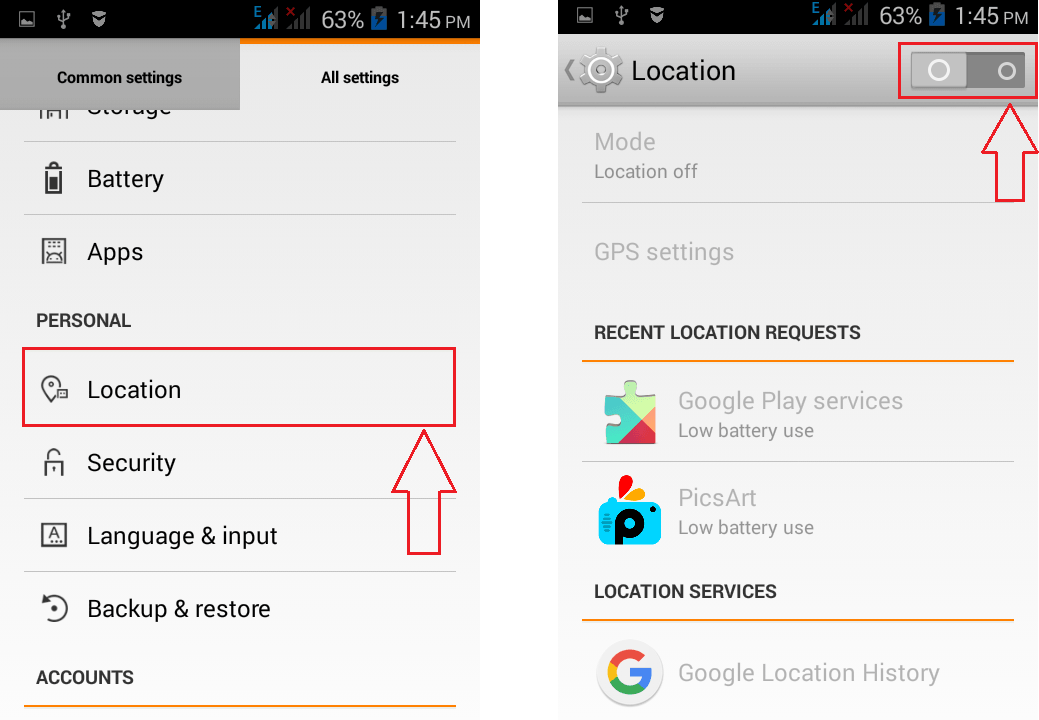
Tip 3 : Turn Off Location Services

If you want your phone to have a long and prosperous life with its battery, just turn off the Location services feature. This is a major battery eater. You can find theLocation option under All Settings as shown in the screenshot.
3location

Tip 4 : Turn Off Vibration Feature

Why is it that you love it when your phone vibrates every now and then? Do you know how much effort your battery has to take to give you that little satisfcation? If you really love your battery, its time that you turned the vibration feature off. You can find it under the Audio Profile section as shown below.
4vibration

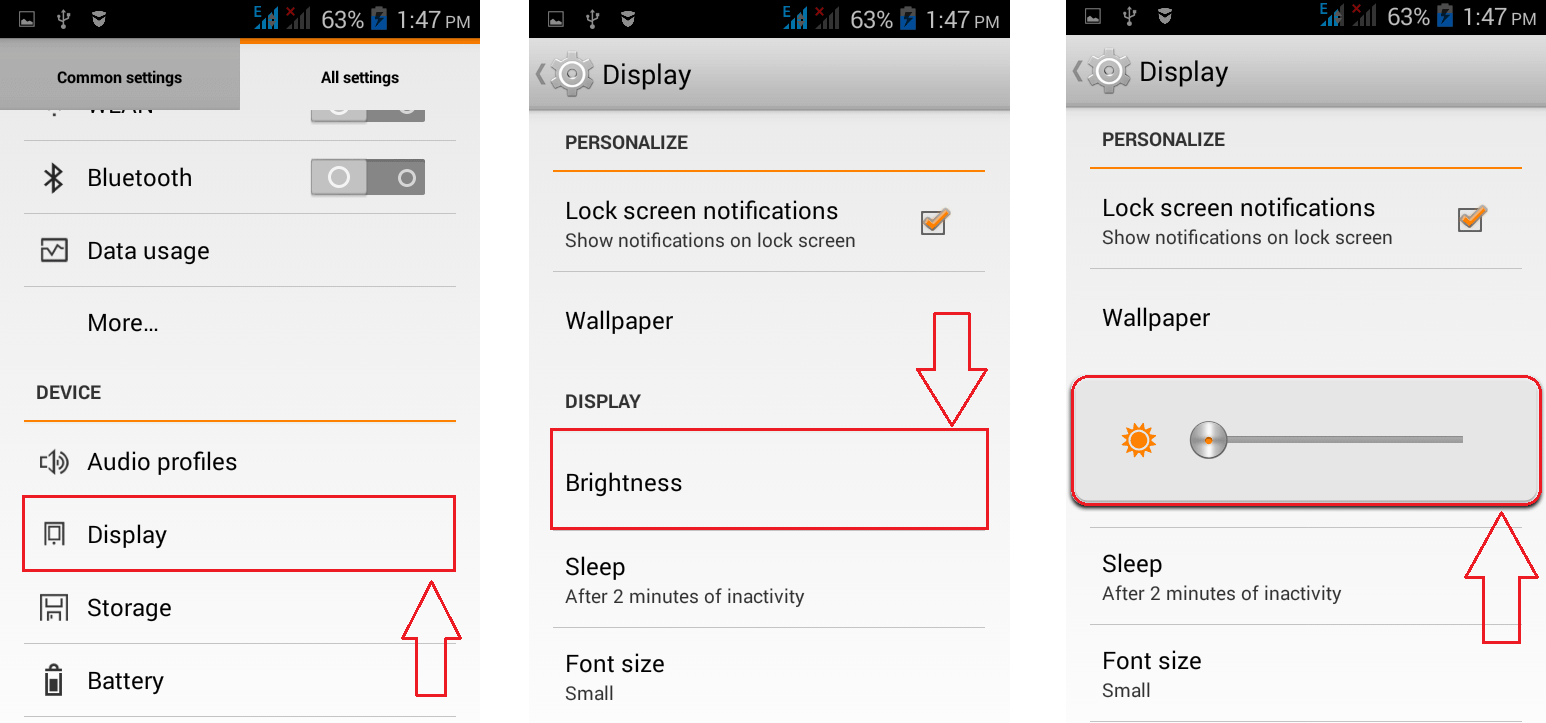
Tip 5 : Turn Down Brightness Level

Oh, come on! Having tubelight brightness coming from your phone is not good for your battery or your eyes. Why don’t you just bring it down to a reasonable level? You can find the Brightness slider under the Displaysection of your phone.
5brightness

Tip 6 : Use Dark Wallpapers

Trust me or not, if your phone has AMOLED screen and if you use dark coloured wallpapers, then that alone is going to save a lot of your battery power. AMOLED screen lits up only coloured pixels. Black pixels are unlit and hence the more the dark pixels in your wallpaper, the more the power saved.

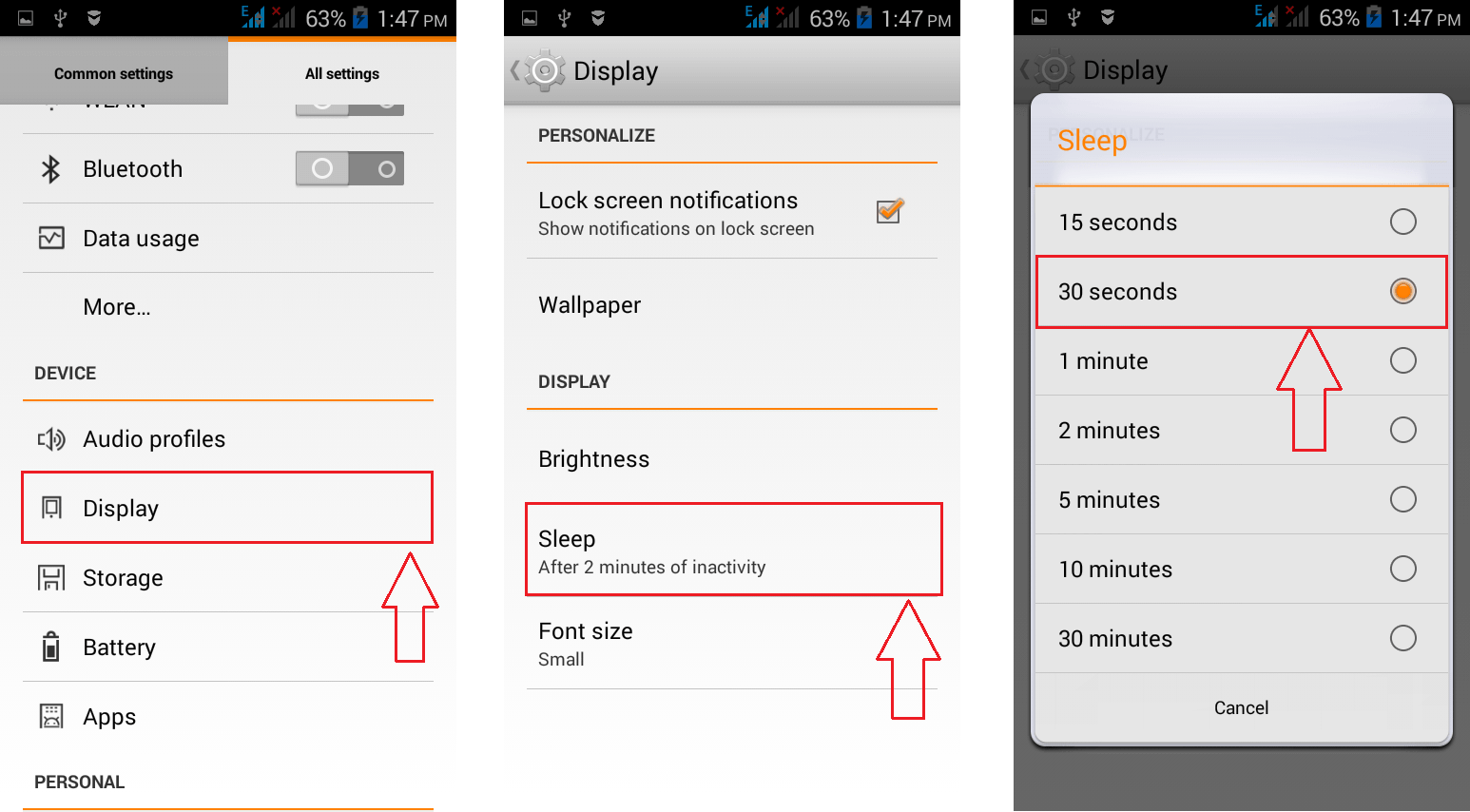
Tip 7 : Set Shorter Screen Timeout

Having a shorter screen timeout always helps you save your battery life. Just make the screen timeout to a comparatively low time by adjusting it in the Sleepsettings as shown in the screenshot.
6sleep

Source: MeraBheja
How To Download All Your Facebook Data Including Chats And Photos

How To Download All Your Facebook Data Including Chats And Photos

Admin 2016-02-23T17:21:00+05:30 0
Wondering whether you can get all your Facebook data at a single place? From the time you created an account on Facebook till now? Indeed awesome, isn’t it? Yes, you can have your own copy of your Facebook activities right on your desktop without an Internet connection. All your chats, photos, status updates, pokes, events, friends’ list, what not, even your timeline right on your desktop! Fortunately Facebookdoes provide such an option for its users without any charges. You can have all your Facebook data right on your PC with the effort of nothing but a single click. Eager to know how it can be done? Read on then.

STEP 1
  • Click on the down arrow at the top right corner of your Facebook page. From the menu that gets expanded out, click on the option named Settings.
1settings
STEP 2
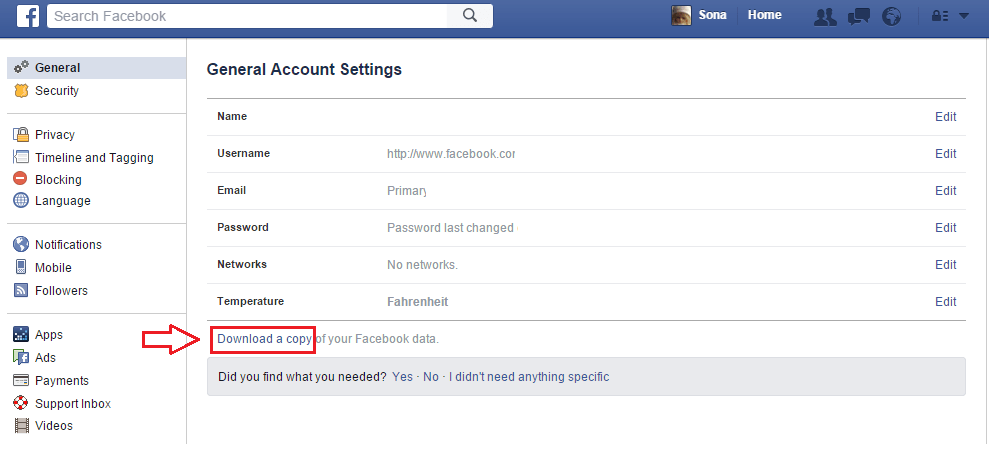
  • This will open a new page named General Account Settings. Here, find the link that says Download a copy of your Facebook data and click on it.
2download
STEP 3
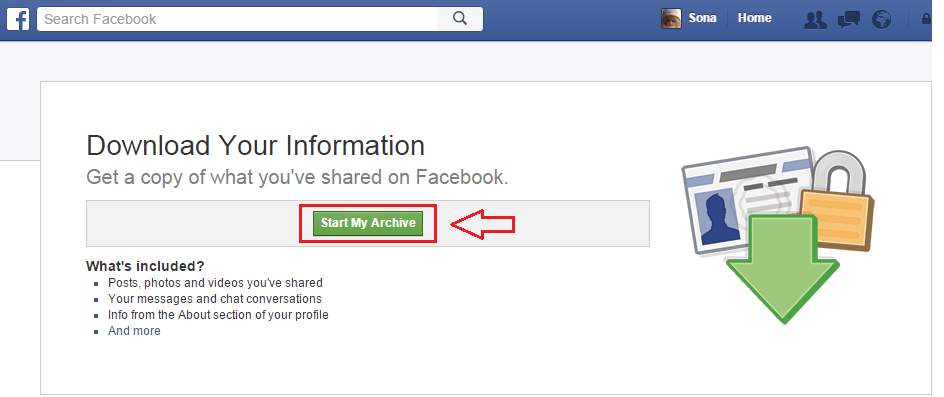
  • Click on the button that says Download My Archive as shown in the screenshot.
3start
STEP 4
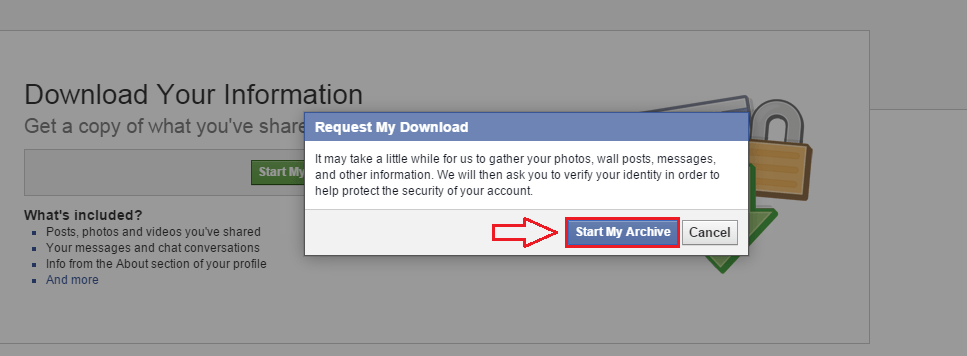
  • A new popup alert box opens up. It will tell you that it will take a little while to gather all your data. Simply click on the Start My Archive button again.
4confirm
STEP 5
  • Check the mail id with which you have registered forFacebook. You will receive a mail containing a link using which you can download all your Facebookdata. Once you get the link, click on it to proceed to the download.
5link
STEP 6
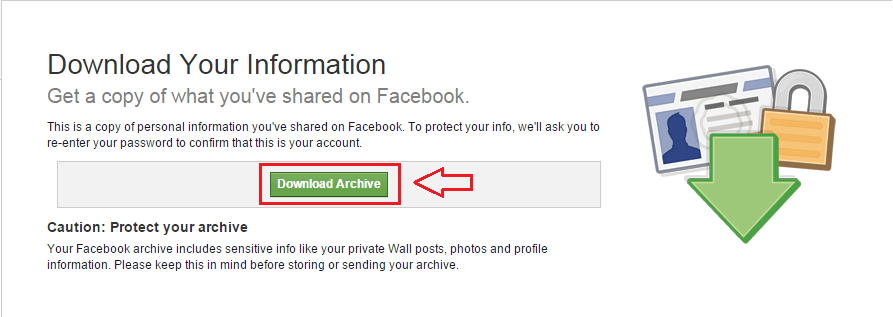
  • Click on the Download Archive button once you are directed to the download page.
6downloadArchive
STEP 7
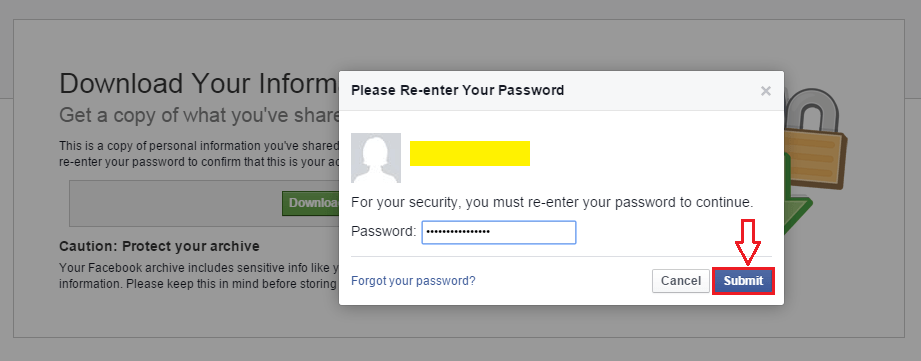
  • You will be asked to re-enter your password for security reasons. Enter the password once again and hit the Submit button.
7password
STEP 8
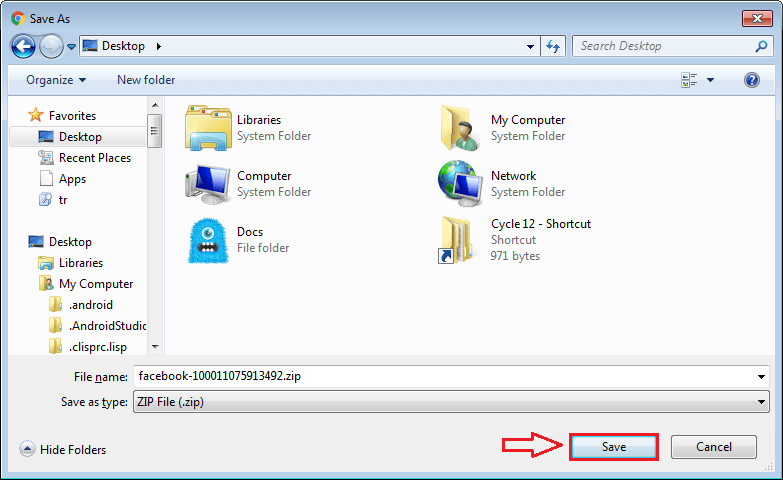
  • Execution of the previous step will automatically start the download. Save the zip file to a location as per your preference.
8zipped
STEP 9
  • Extract the zip file that you just downloaded. Find the file named index.html. Open it with a browser.
9extracted
STEP 10
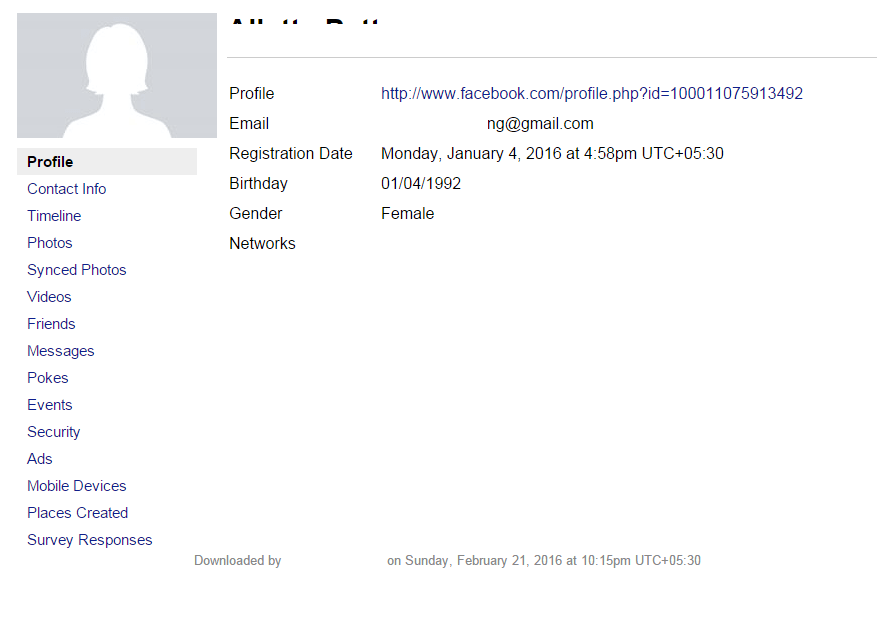
  • The web page index.html will give you all the information that you want about your Facebookaccount.
10data

That’s it. Now you can explore through your Facebookaccount without an internet connection as simple as that. You can have a copy of every single activity that you have ever had on your Facebook account today itself. Hope you found the article useful.
Source: MeraBheja
View Passwords Of The Connected Wi-Fi In Windows

View Passwords Of The Connected Wi-Fi In Windows

Admin 2016-02-23T17:13:00+05:30 0

Here, we provide you with the steps on to how to recover the passwords you have opted to store and connect automatically. But this requires you to have connected to the corresponding network.Follow the below given guidelines.

View The Password Stored Automatically For A Connected Network

Step 1:
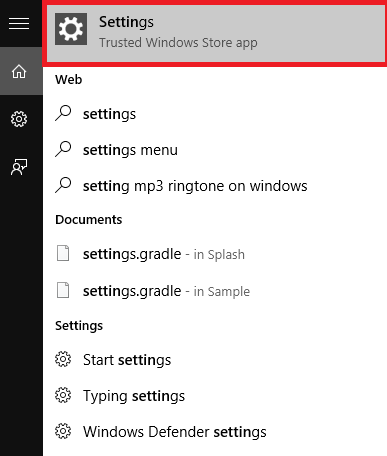
Open up the Settings app from the Start menu that appears on the bottom left of your desktop.
Screenshot (172)

Step 2:
Type network connection in the Search box provided on the right. A list of options pop up towards the left pane.On the very top, view the option called View Network Connections. Click upon it.
1
Step 3:
When you do so, the Network Connections get opened up in a new window along with the settings that can be done over there.This is actually getting opened up in the Control panel.

Step 4:
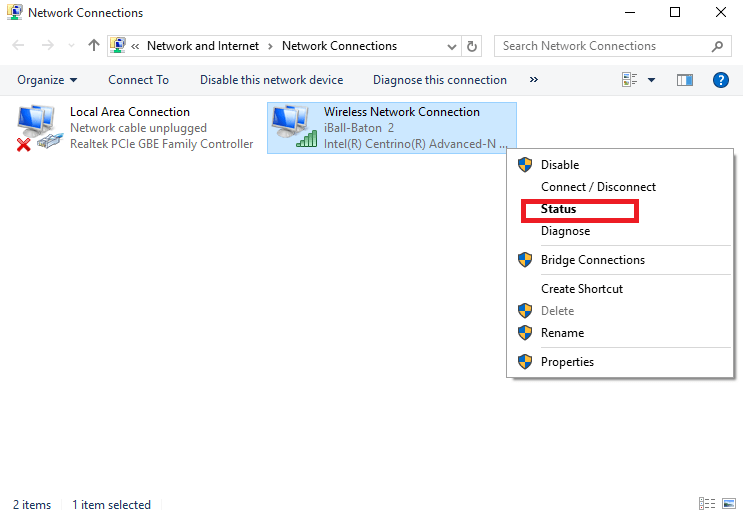
Various connections presently on your system is shown. Click on the currently connected wireless adapter and choose the option called Status.
2
Step 5:
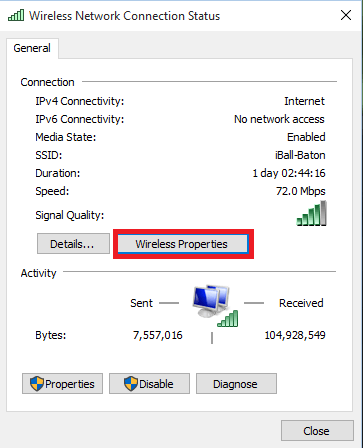
A new window now pops up.Click on the option calledWireless Properties as shown in the image below.
3
Step 6:
Out of the two options Connection and Security at the top, choose the option named Security. You get information about the connected network. Click on Show Characters box in order to get your current password.
4

Source: MeraBheja

Pro Connect 10400 MAh Power Bank @ 299rs only

2016-02-21T18:07:00+05:30 0
Hiii.....Friends Askmebazaar has again come with an awesome offer where you can get Pro Connect 10400 MAh Power Bank Worth 763rs at just 299rs only.Roam freely remotely with this easy to carry Power Bank which has great capacity of portable power supply. This palm sized power bank comes with a USB slot which is most commonly used. It is suitable for nearly all kinds of mobile phones, Tablets and many such digital products which would have similar USB port. Its steady and swanky body makes it more popular among the users.Friends just follow few simple below steps to grab this offer.


STEPS TO GET THIS OFFER :-


2.Click on buy now.


3.Fill up your shipping details.


4.Apply coupon :- 


5.Click on confirm order.


6. Make the final payment.


Samsung HM 1000 Bluetooth Headset-Black at ₹0

Samsung HM 1000 Bluetooth Headset-Black at ₹0

Admin 2016-02-18T21:50:00+05:30 2


  1. Click here to go to the offer page.
  2. Click on Buy Now.
  3. Fill your delivery details.
  4. Select payment method to pay delivery charge if any.


About the Product

The HM1000 Bluetooth headset delivers a supreme clarity and quality of sound. The HM1000 is astonishingly simple to use. Its pairing functionality allows pairing this headset with another Bluetooth device. The Multifunction button makes the headset easy to pair. Besides this, the multi point technology enables it to be connected to two Bluetooth handsets simultaneously 
Get Free Askmebazaar Cash ₹100 On Signup + ₹25 per refer For Shopping – Askmebazaar Refer and Earn

Get Free Askmebazaar Cash ₹100 On Signup + ₹25 per refer For Shopping – Askmebazaar Refer and Earn

Admin 2016-02-18T21:13:00+05:30 0


Askmebazaar Refer and Earn – Askmebazaar is Offering Free Rs. 100 for making new account on their website. You will get instant 2000 coins equivalent to Rs. 100 after completing signup process which you can check by going to My Rewards Section and can covert same into Askmebazaar Cash on same page by clicking on convert coins option. So loot fast and do shopping for free. Now refer your friends and get 500 coins when they signup using your referral link.


How To Get Free Askmebazaar Cash Rs. 100 On Signup For Shopping – Askmebazaar Refer and Earn

2. Enter name, email id and mobile number
3. Enter referral code ISZ3OEFFFB9C (If not already shown)
4. Now click on send OTP
5. You will get OTP on your mobile number, verify OTP and click submit
6. Now check My Rewards Section you will get 2000 coins worth Rs. 100
7. You can convert coins into Askmebazaar Cash by clicking on convert coin option
8. Now refer your friends and family to earn 500 coins for each signup from your link.

Refer & Earn 500 Coins on Each Referral and Rs.50 Askme Cash :-

  • After Signing up on Askmebazaar, Click on Invite & Earn option (Top upper menu bar option).
  • Again click on Invite & Earn option.
  • Enter your friend Email ID and share it via Facebook & Twitter.
  • Get your own referral link by sharing via any method.
  • Share it with your friends and family.
  • On each referral you will get 500 Coins in your account also you will get Rs.50 Askme cash when your friend shop at Askmebazaar.
  • Your friend will also get 2000 Coins at sign up.
  • 2000 Coins = Rs.100 Askme Cash.
  • Refer more friends and earn unlimited Askme cash for shopping.